
Use OrbTorrent
The menu bar
OrbTorrent lives in your menu bar, so your downloads are a click away without a window open.
The orb
Section titled “The orb”The orb in the menu bar is all your downloads at a glance. It fills up as they progress, and its colour says how they’re doing:
| Colour | Means |
|---|---|
| Blue | Downloading. The faster it goes, the livelier the light moves. |
| Amber | Waiting: for peers, for a magnet link’s file list, for files being checked or moved, or for your VPN. |
| Grey | Paused. |
| Green | Finished, or seeding. |
| Red | Something needs attention, such as a download with an error, or the download engine stopped. |
When some downloads are moving, the orb shows those. Otherwise it shows the one that matters most: an error first, then seeding, then waiting, then paused.
The panel
Section titled “The panel”Click the orb to open the panel.
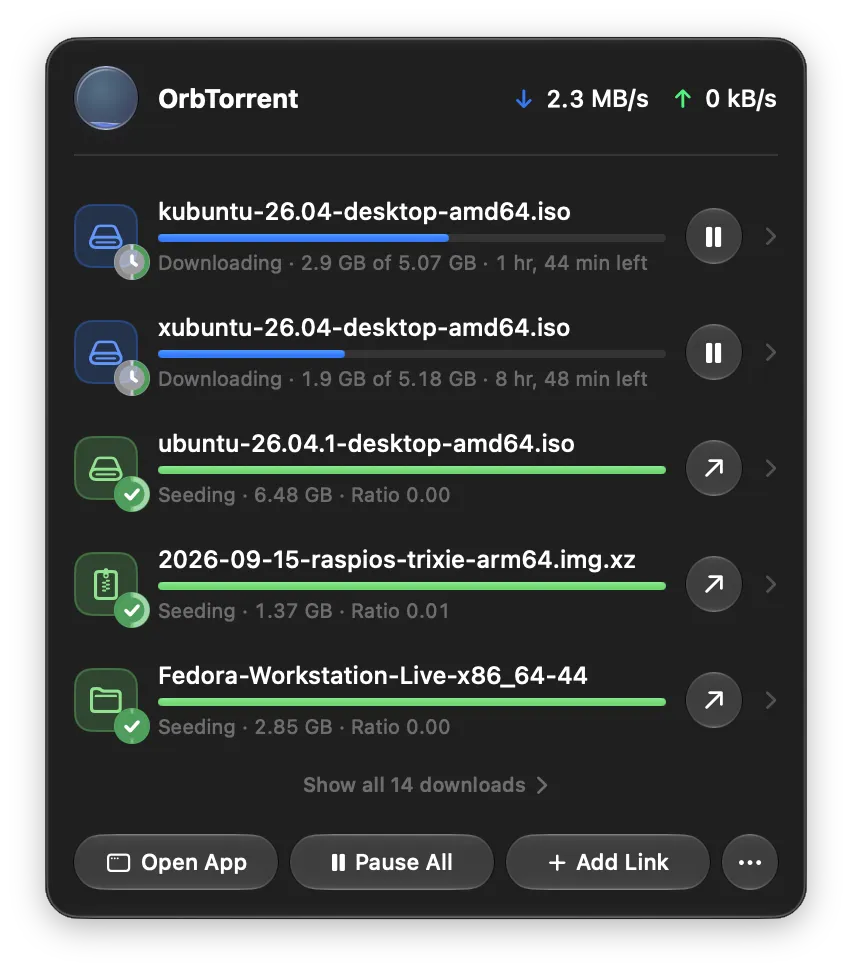
- At the top, your total download and upload speeds.
- Your downloads, busiest first: running ones fastest first, then paused ones, then finished ones. Each shows its progress and what it’s doing, such as “Downloading · 2.9 GB of 5.07 GB · 1 hr, 44 min left”. With more than six, the list scrolls.
- At the bottom, Open App opens the OrbTorrent window, Pause All or Resume All does as it says, and Add Link adds a magnet link. More (…) has the rest.
A strip at the top of the list tells you when something needs a look:
- “… is held by a check.” An extension held a download before it started. Click Review to see why, and decide. Checks and held downloads explains.
- “OrbTorrent … is available.” A new version was found while OrbTorrent was in the background. Click Update to see what’s new and install it.
If you’ve copied a magnet link, the panel offers to add it: Add “…” from Clipboard.
A download in the panel
Section titled “A download in the panel”Each download has a button at its end: Pause or Resume while it’s downloading, and Open once it’s finished.
Click a download to see its files right in the panel. You can open a finished file, choose which files to download, and set their priority, just as in the window. Choose files and their order explains how. Back returns to the list.
Right-click a download for more:
- Open and Show in Finder
- Pause or Resume
- Copy Name, its full name, and Copy Magnet Link
- Show in OrbTorrent, which opens it in the window
- Delete…
Point at a download and a Delete button appears. Deleting from the panel removes the download and its files, which go to the Trash, or are erased if you’ve changed that. It asks first, saying how much will go.
The More menu
Section titled “The More menu”More (…) at the bottom of the panel has:
- About OrbTorrent
- Check for Updates…
- Settings… (⌘,)
- Open Torrent File…
- Report a Problem…
- Quit OrbTorrent (⌘Q)
Asking before a download
Section titled “Asking before a download”When you click a magnet link in your browser or open a .torrent file in Finder, OrbTorrent asks about it in the panel: which files, where to save them, and whether they fit. If several arrive at once, it asks about each in turn, showing “1 of 3”. Your first download walks through it.
If the engine stops
Section titled “If the engine stops”OrbTorrent downloads with qBittorrent’s engine, which runs in the background. If it stops, the orb turns red and the panel says Download engine stopped. Click Restart. If it keeps stopping, see Troubleshooting.