
Get started
Your first download
To try OrbTorrent, download something you’re allowed to share, such as a Linux image: Ubuntu, Fedora and Debian all offer torrents on their download pages.
Add a download
Section titled “Add a download”OrbTorrent takes magnet links, .torrent files, and web links to .torrent files. Use whichever is closest:
- Click a magnet link in your browser, or open a
.torrentfile in Finder. This works once OrbTorrent is your Mac’s default torrent app. - Drag a
.torrentfile onto the OrbTorrent window. - Paste a magnet link or a link to a
.torrentfile into the OrbTorrent window, with ⌘V. - Copy a magnet link, then open the menu bar panel: it offers Add “…” from Clipboard.
- Choose File › Add Magnet Link… (⌘U) or File › Open Torrent File… (⌘O), or click Add Link in the menu bar panel.
If the download is already in your library, OrbTorrent says so rather than adding it twice.
Choose what to download
Section titled “Choose what to download”OrbTorrent asks before downloading, so you can check what’s coming first. Links from your browser and files from Finder are asked about in the menu bar panel; downloads you add in the window are asked about there.
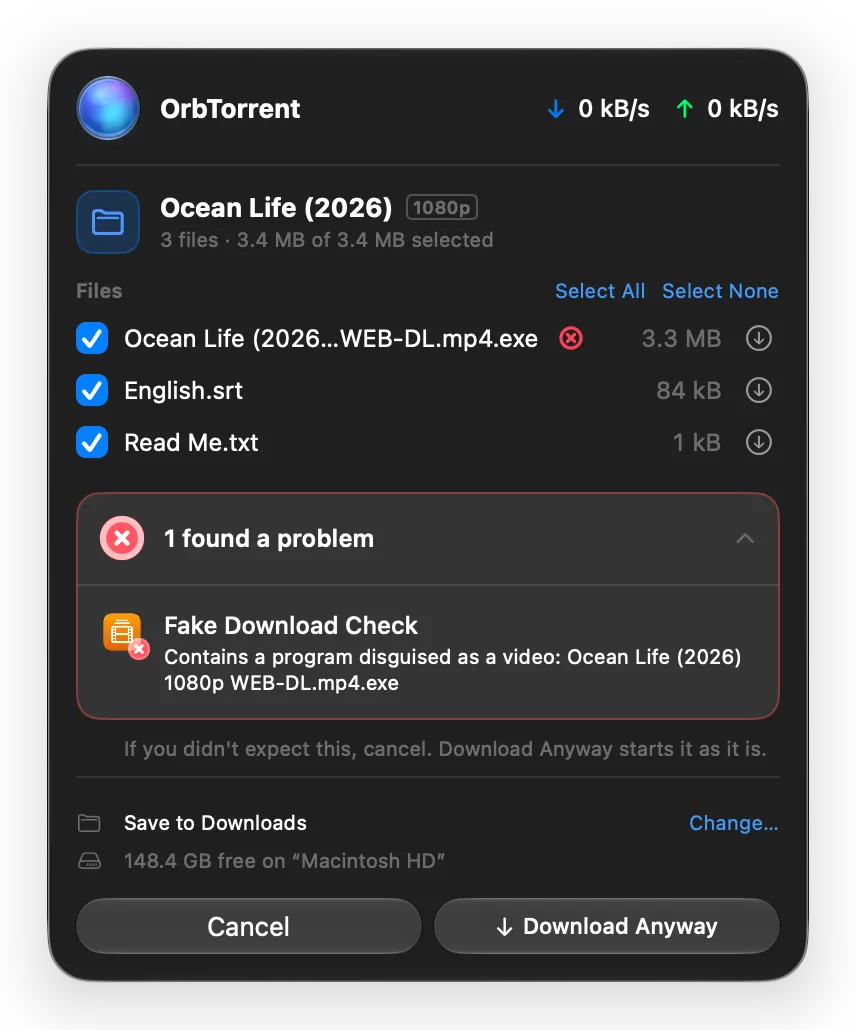
- Files. Untick any you don’t want, and click a file’s circle to give it a priority. Select All and Select None are above the list. A download with one file has no list.
- Checks. If your extensions check downloads before they start, their results show here. If one finds a problem, the button becomes Download Anyway.
- Save to. Where the files go. Click Change… to choose another folder for this download.
- Free space. How much room the disk has. If the download won’t fit, OrbTorrent says so before anything downloads.
Click Download to start. Adding in the window also offers Start right away, and Download in order, to watch while it downloads.
If you’d rather downloads start without asking, choose Start downloading right away in Settings › General. Extensions still check each download, and hold one that looks wrong.
Watch it download
Section titled “Watch it download”- The menu bar orb fills with blue light as your downloads progress. Click it for each download’s speed and time left.
- The library window shows every download, and the inspector shows one in detail: its files, peers and trackers.
- When the download finishes, a notification says so, with Open and Show in Finder.
When it’s done
Section titled “When it’s done”A finished download keeps seeding: sharing what you downloaded with other people, the way BitTorrent works. You can limit how much it shares, or pause it.
To open it, click the arrow next to it in the menu bar panel, or double-click it in the library. Show in Finder (⌘R) shows its files.
To remove it, select it and press ⌘⌫. You can remove it from OrbTorrent and keep its files, or remove its files too. Unless you’ve changed it, removed files go to the Trash, so you can put them back.