
Use OrbTorrent
The library window
The OrbTorrent window has every download, and everything you can do with them. Open it with Open App in the menu bar panel, or by opening OrbTorrent from your Applications folder.
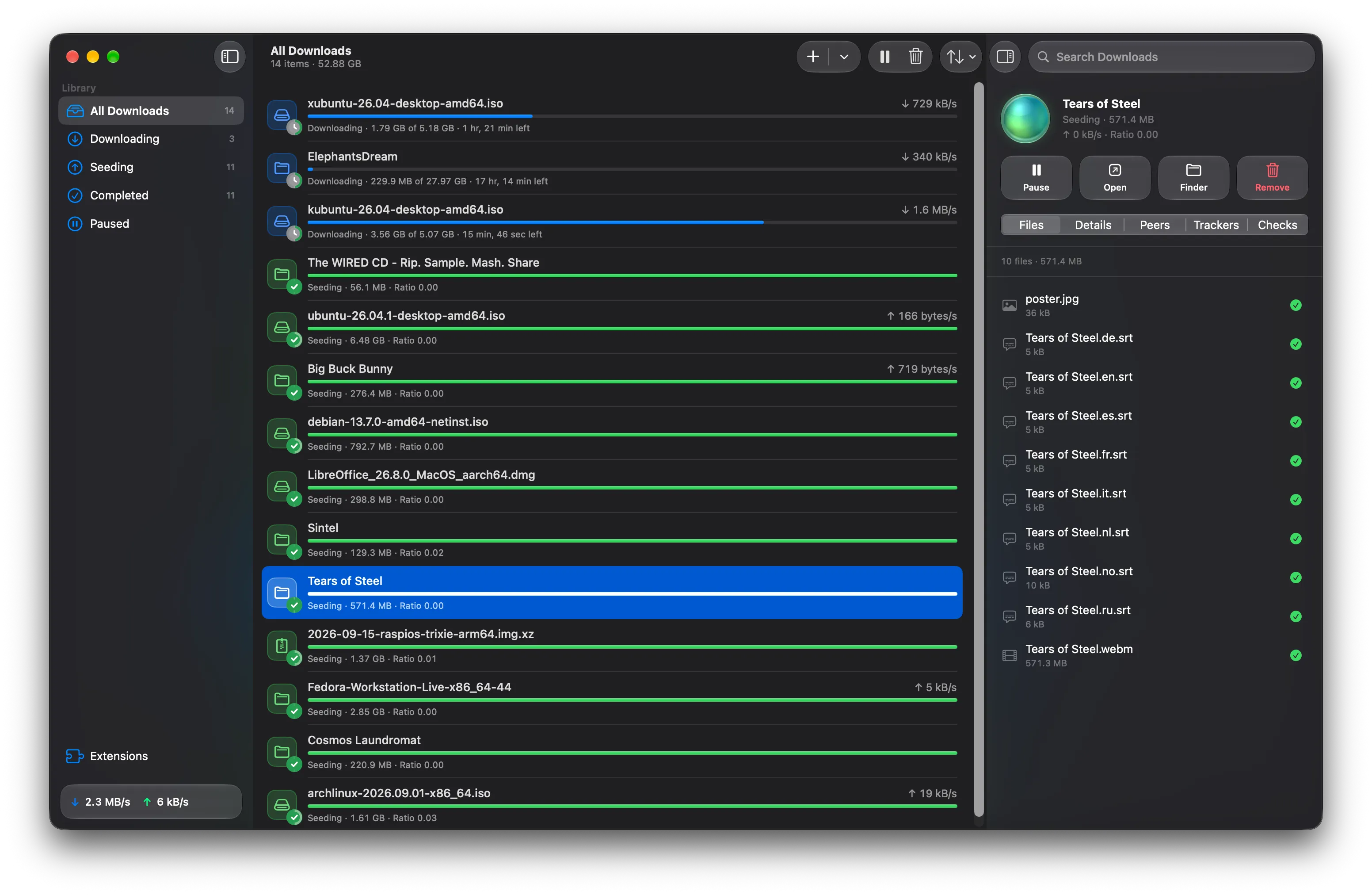
The sidebar
Section titled “The sidebar”The sidebar sorts your downloads into sections, each with how many it holds:
| Section | Shows |
|---|---|
| All Downloads | Everything in your library. |
| Downloading | Unfinished downloads that are running. |
| Seeding | Finished downloads you’re sharing. |
| Completed | Everything that’s finished, seeding or not. |
| Paused | Downloads you’ve paused, and those held by a check. |
| Needs Attention | Downloads with an error. It only shows when there are some. |
At the bottom are Extensions, which opens the Extensions page, and your total speeds. When something’s wrong, the speeds make way for what it is, such as Waiting for VPN or Disk almost full. Point at it for more. While you download through a VPN, it says which.
The list
Section titled “The list”Each download shows its name, progress, speed, and a line saying what it’s doing:
| Status | Means |
|---|---|
| Downloading | Receiving data, with how much is done and the time left. |
| Waiting for Peers | Running, but no one is sending it anything right now. |
| Fetching Info | A magnet link waiting for its file list from peers. |
| Checking | Checking the files on disk against the torrent. |
| Moving | Moving its files to another folder. |
| Seeding | Finished, and sharing with other people. |
| Completed | Finished, and not sharing. |
| Paused | Stopped until you resume it. |
| Files Missing | Its files were moved or deleted outside OrbTorrent. |
| Error | Something went wrong, such as a disk that’s full or no longer connected. |
Tidy names
Section titled “Tidy names”Downloads named the way releases usually are show as what they are: Orbit.Station.S02.2160p.HDR… as Orbit Station · Season 2, and Sintel.2010.1080p.x264 as Sintel (2010). A badge after the name shows the picture’s quality when the name gives it: 4K, 1080p or 720p, and HDR for HDR10, HDR10+ and Dolby Vision, such as 4K HDR. A website’s name in front, such as www.example.org - , is left out. In a download’s files, each episode shows as its number, such as S02E01, with its title if the file has one, and three or more files in a folder whose names start with the same words, such as a course’s lectures, leave those words out.
Hold the pointer over a name to see it in full. It’s also on the download’s Details tab, and Copy Name copies it.
OrbTorrent reads names on your Mac, and only changes how they look: the files keep their names. A name it can’t read clearly shows as it is, such as ubuntu-26.04-desktop-amd64.iso. Two copies of a film in different qualities are told apart by their badges, and two that would look exactly the same show their names in full. To see every name in full, turn off Show tidy download names in Settings › General.
Double-click a download to open it. Select several with ⌘-click or ⇧-click, or all of them with ⌘A.
The toolbar
Section titled “The toolbar”- Add (+) adds a magnet link. Hold it, or click its arrow, for Open Torrent File….
- Pause or Resume, and Remove, act on the selected downloads.
- Sort and Group orders the list by Date Added, Name (as it’s shown), Progress, Size or Download Speed, and splits it into groups by Date Added or Status, as Finder does.
- Inspector shows or hides a download’s details on the right (⌘I).
- Search Downloads finds downloads by name, as it’s shown or in full, or by quality, such as 4K.
The right-click menu
Section titled “The right-click menu”Right-click a download, or several, for:
- Open and Show in Finder
- Pause or Resume
- Download Sequentially, which downloads its pieces in order, to watch a video while it downloads
- Copy Name, its full name, and Copy Magnet Link
- More › Ask Trackers for More Peers, Verify Local Data and Move To…
- Remove…
A download’s details explains what each of the More actions does.
Add downloads here
Section titled “Add downloads here”Drag a .torrent file onto the window, or paste a magnet link or a link to a .torrent file with ⌘V. OrbTorrent asks about it in the window, where you can also choose to start it straight away or download it in order.
Remove downloads
Section titled “Remove downloads”Select one or more downloads, then press ⌘⌫, or click Remove in the toolbar. You choose:
- Remove from OrbTorrent, which keeps the downloaded files where they are.
- Remove and Move Files to Trash, which you can undo by putting them back from the Trash.
If you’ve set OrbTorrent to delete files permanently, the second choice is Remove and Delete Files Permanently instead, and the files can’t be put back.
Banners
Section titled “Banners”A banner at the top of the window appears when:
- OrbTorrent isn’t your default torrent app. Click Make Default, or Not Now to stop it asking.
- A new version is available. See what’s new, and install it when you’re ready.